

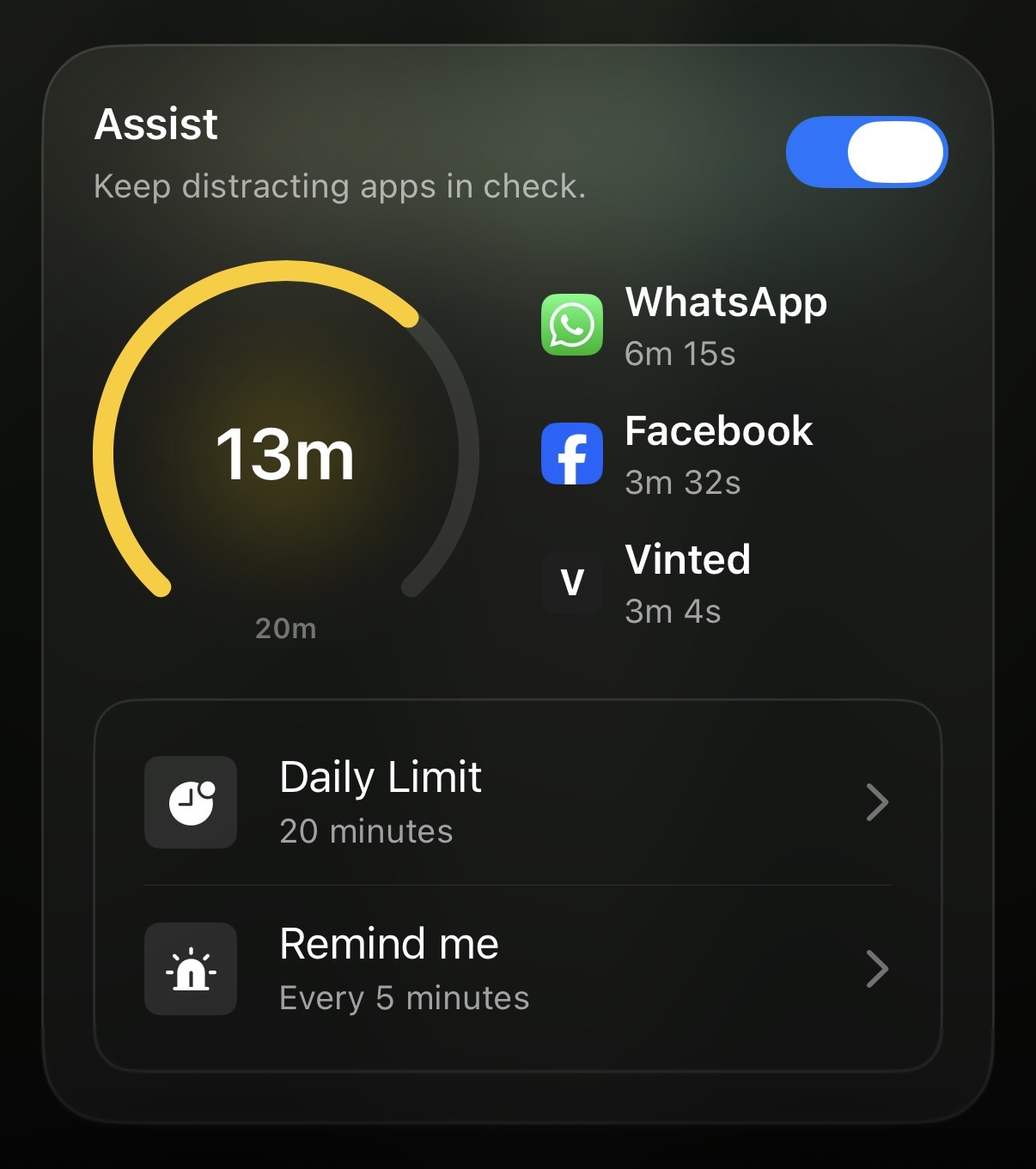
Many of us struggle with setting - and more importantly, maintaining - our goals, including our screen time goals. On that note, Opal’s new Assist feature on iOS helps you stay mindful of your screen time by monitoring your use of your top three most distracting apps. It then sends reminders when you exceed thresholds that you set. This feature is gentler than our Time Limit feature, and helps you stay on track.
To find the Assist feature, please ensure you have updated to the newest version of the iOS app here. Once you’ve updated, tap on the “Home” tab. You should see the “Assist” feature displayed there. It includes:
To enable our Assist feature on iOS, please open Opal and locate the Assist card on your Home tab. Once that’s complete, follow these steps:
Once you’ve enabled Assist, you will see the circular progress gauge dill up as you use distracting apps:
Note: Assist requires Notification permissions to function. If your Notifications are disabled, the card will show instructions to enable them. Once enabled, you’ll receive reminders at your chosen interval whenever you’re using distracting apps. If you do not enable Notifications, you will be unable to use our Assist feature.
If the Assist feature is not working for you, please update to the newest version of the app here. Once that is complete, please ensure your Notifications for Assist are enabled by navigating to your “Profile” tab > “Settings” (accessible via the gear icon in the top right corner of the app) > “Notifications” > “Assist”. Once you’ve taken both steps, the issue should be resolved. If not, do not hesitate to contact Support in-app to report the issue.
Currently, we're working on implementing feature parity for our Mac app and for our newly launched Android app. Stay tuned on that front!
