

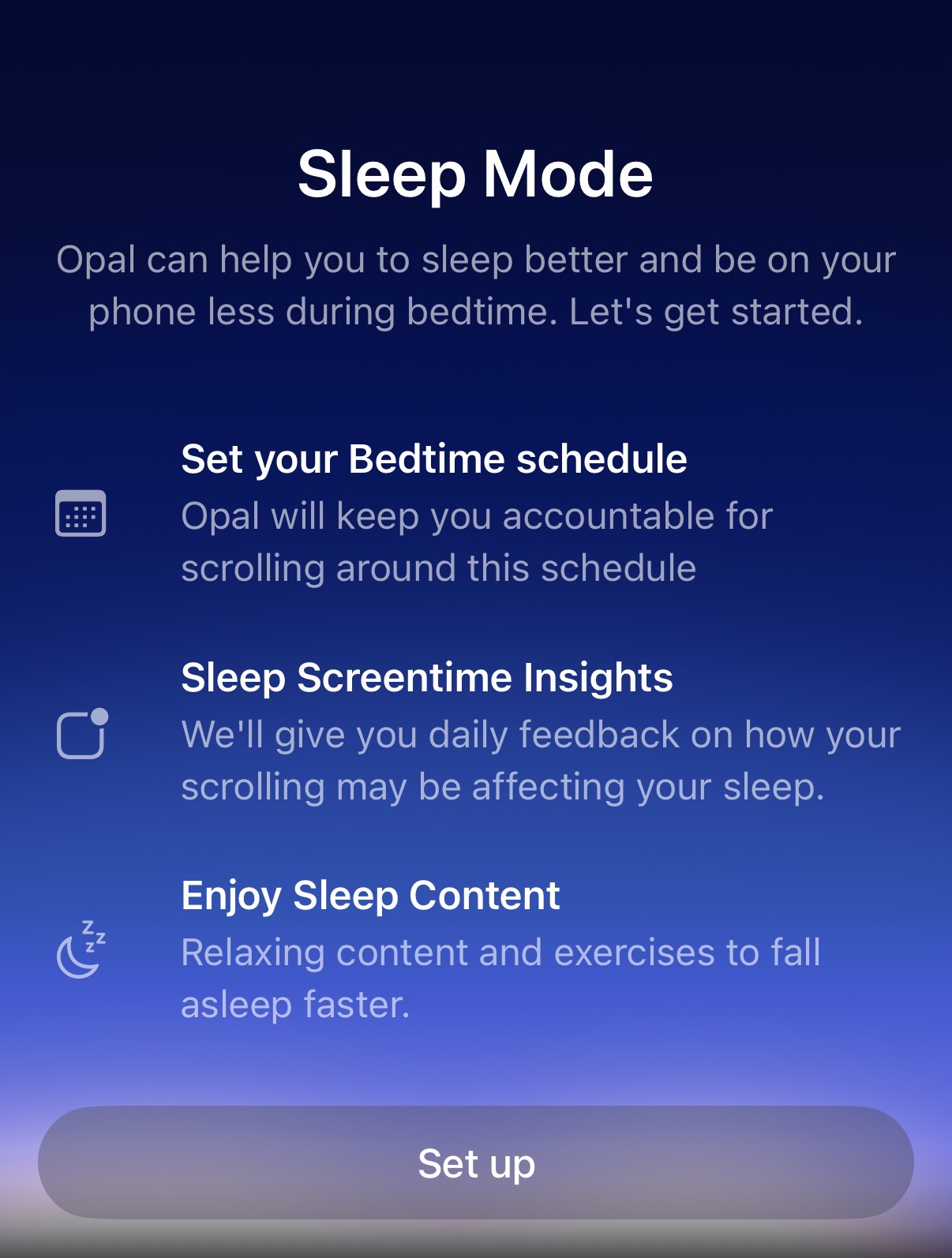
Your phone shouldn’t keep you up at night, and now it won’t. Meet Sleep Mode, a new Opal feature on the iOS version of the app designed to help you wind down, prevent you from doom-scrolling, and help you wake up on your own terms. Sleep Mode works independently of Sessions, Time Limits, and Open Limits. Off by default, you can enable and customize the feature anytime directly from the Sleep tab.
To set up Sleep Mode, tap on the bed icon in the bottom menu bar. From there, follow these steps:
Once that’s complete and you’ve completed your first night, you’ll see insights such as:
Opal’s Sleep feature includes both “Sleep Assist” and “Morning Assist,” which help you ease into sleep and wake up more intentionally. To customise “Sleep Assist” and “Morning Assist,” follow these steps:
The assist levels within Sleep differ from the difficulty levels you can find in Sessions, Time Limits, and Open Limits. Here’s how they work for "Sleep Assist":
Meanwhile, here's how they work for "Morning Assist":
If you are stuck in any Session type and can not exit, you must use your Emergency Pass to regain access. To do so, follow these steps:
Please keep in mind that the Emergency Pass will cancel your currently running Sessions, Time Limits, Open Limits, and Sleep Session only. If your recurrent Sessions, Time Limits, Open Limits, or Sleep Session is programmed to reinitiate, you must edit or delete them (as needed) immediately after using your Emergency Pass.
Please note that our Support team is unable to force end a Session on your behalf, so you'll need to follow the instructions above. If you've already used your Weekly Emergency Pass, you'll need to wait until that Session ends to edit it.
This Sleep Mode feature includes a library of calming audios designed to support better sleep, relaxation, and focus throughout your day. You can choose from "Sleep Stories," "Soundscapes," and "Meditation" (including "Gratitude Meditation," "Box Breathing," "Body Scan," and "4-7-8 Breathing").
Currently, we're working on implementing feature parity for our newly launched Android app. Stay tuned on that front!
